高速かつ徹底的なスキャンを実行し、不要なファイルをすべて削除できるというソフトのGeek Uninstaller。
今回の記事では「Geek Uninstaller」を利用して、NIKKEを完全にアンインストールする方法を解説します。
Geek Uninstallerのダウンロード
Geek Uninstallerをダウンロードするため、まず「Geek Uninstaller」にアクセスします。
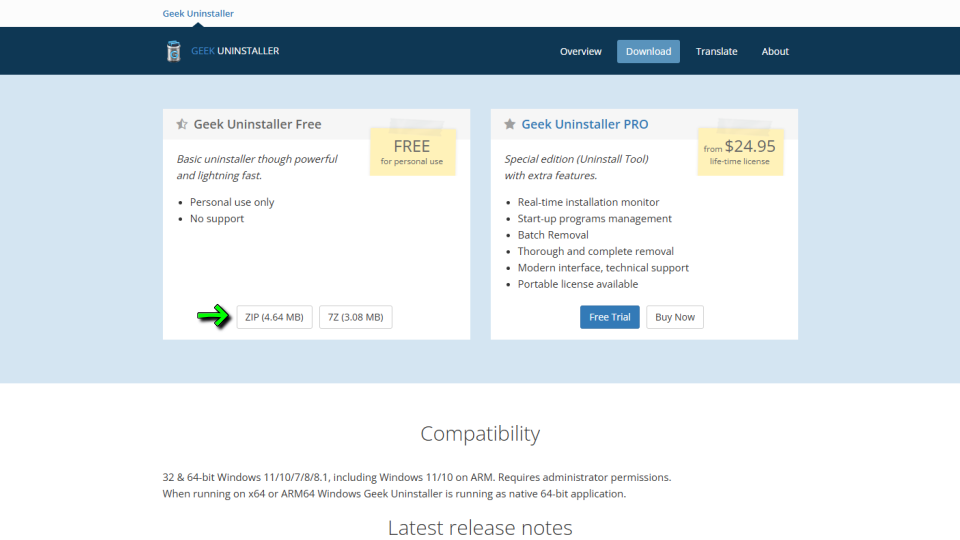
Geek Uninstallerに移動したら、画面中央左の「Download」を選択します。
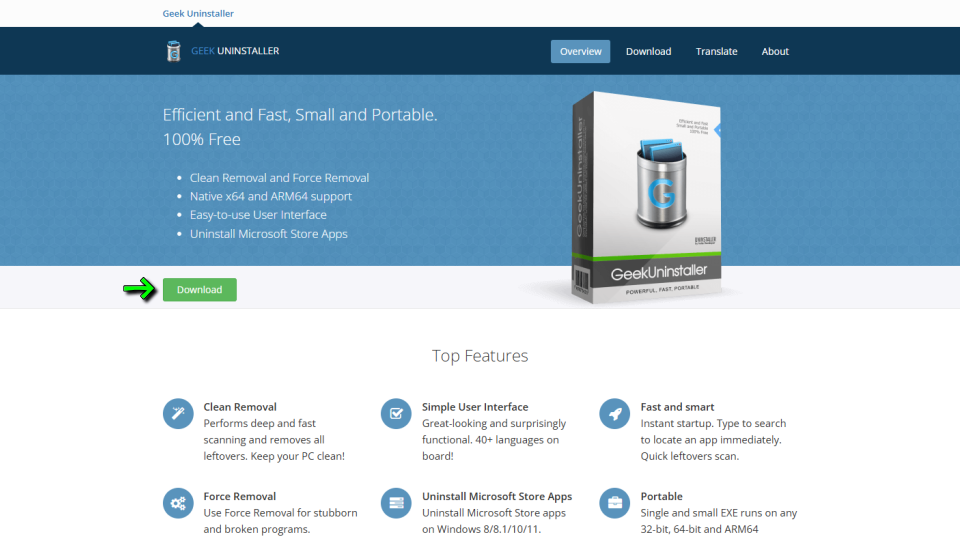
Downloadに移動したら、任意の圧縮タイプを選択して「ダウンロード」します。
Geek Uninstallerの起動方法
ダウンロードした「geek.zip」を解凍します。

解凍したフォルダ内にある「geek.exe」を実行します。

Geek Uninstallerの使い方
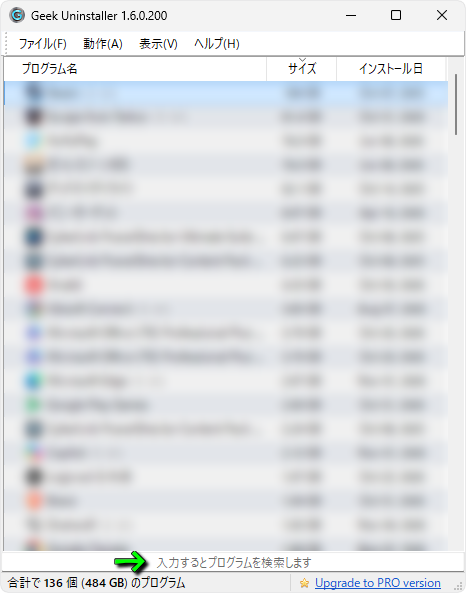
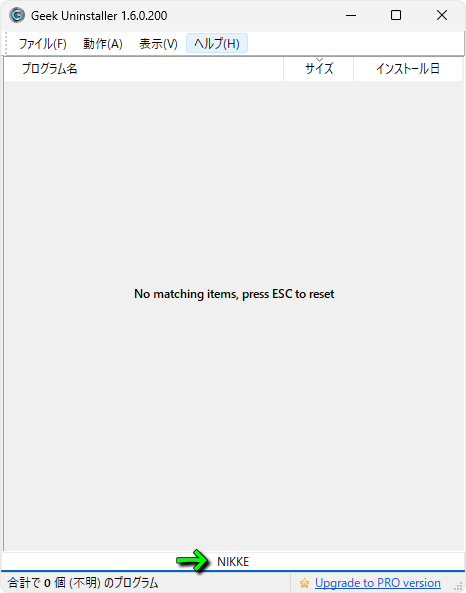
Geek Uninstallerが起動したら、図示した位置に「アンインストールしたいプログラム名」を入力します。
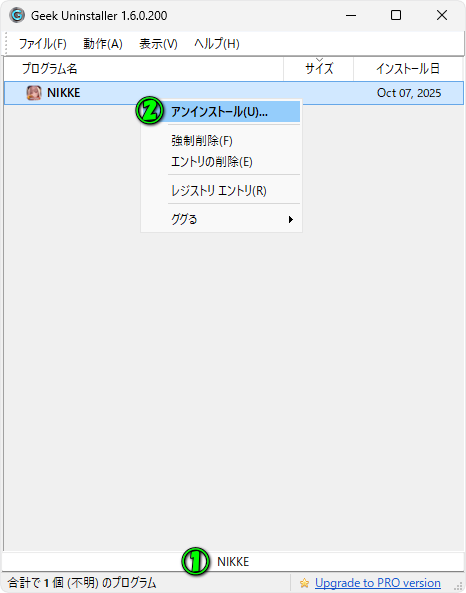
例として「NIKKE」を入力し、NIKKEが表示されたら「右クリック」から「アンインストール」です。
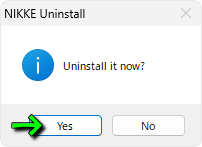
すると『Uninstall it now?』と表示されるため「Yes」で確定します。
NIKKEのアンインストールが始まったらしばらく待機します。
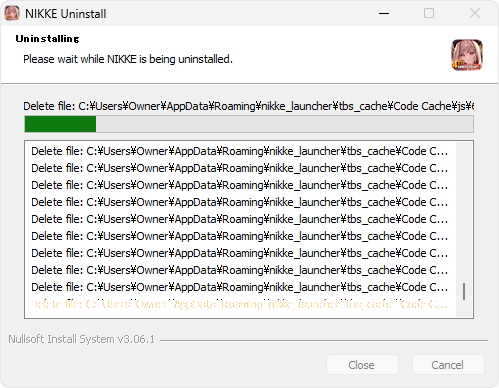
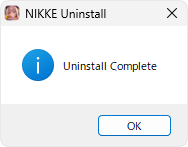
『Uninstall Complete』と表示されたら、基本のアンインストールは完了です。
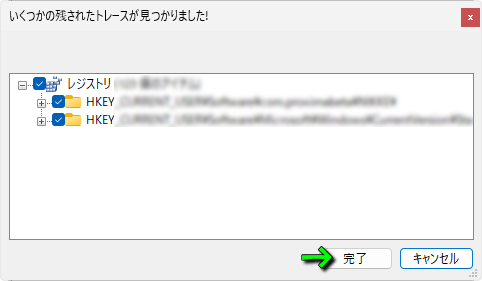
続いて残ったファイルの検出が始まりますから『いくつかの残されたトレースが見つかりました!』と表示されたら「完了」を選択します。
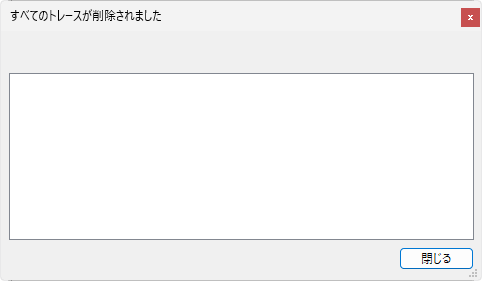
その後『すべてのトレースが削除されました』と表示されたら、NIKKEのアンインストール完了です。
アンインストールが終わったプログラムは、Geek Uninstallerから検出できなくなります。
本当に完全アンインストールなのか?
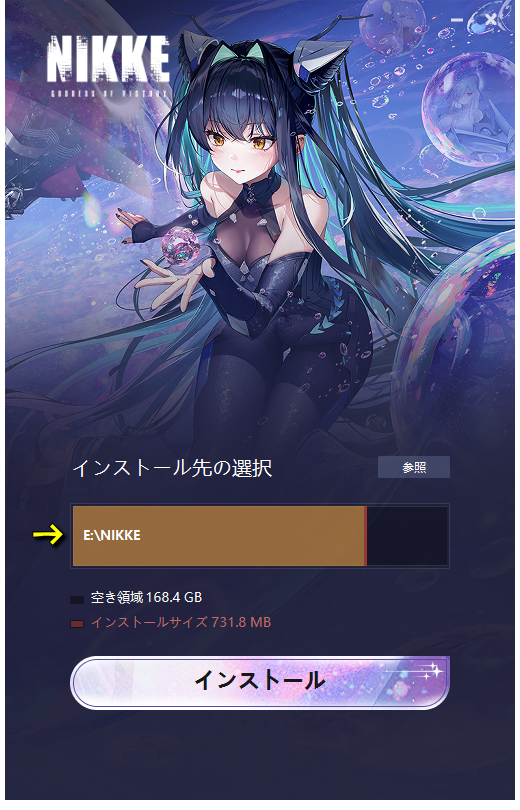
Geek UninstallerでNIKKEをアンインストールしたのち、もう一度最新のランチャーからNIKKEのインストールを試してみました。
すると「インストール先」の選択画面で、削除の直前までNIKKEをインストールしていたドライブが自動的に検出されている状態でした。
そのため『完全にアンインストールできる』という保証は、個人的にできかねます。
Geek Uninstallerと類似するソフト
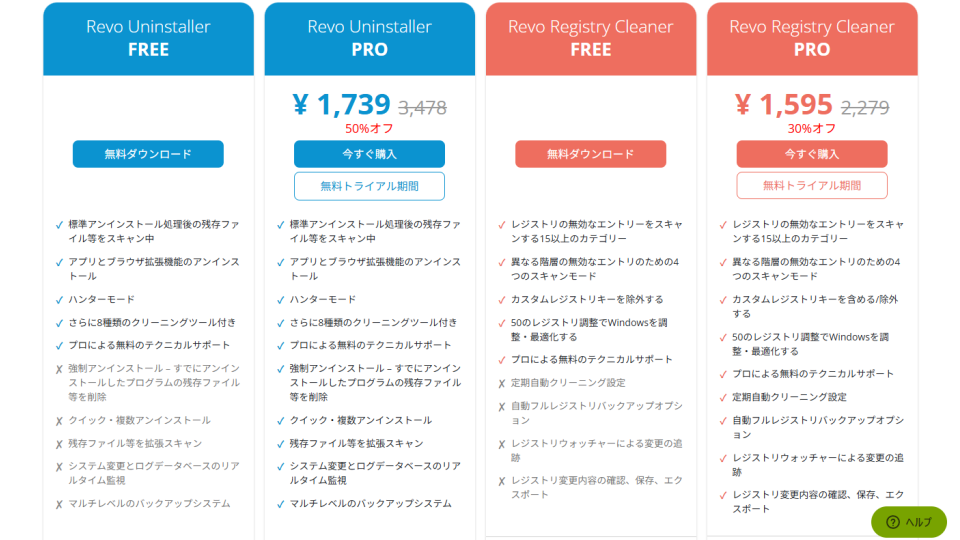
Geek Uninstallerと同様の機能を持つソフトとして、よく「Revo Uninstaller」が比較対象に挙げられます。
-

-
Uninstall Software, Remove programs easily - Revo Uninstaller Pro
Clean removal of any program from your PC. Uninstall and remove programs and software in Windows wit ...
続きを見る